For Project Managers
Guides on planning, governance, team management, and tracking milestones on The Starting Line.
Planning a project
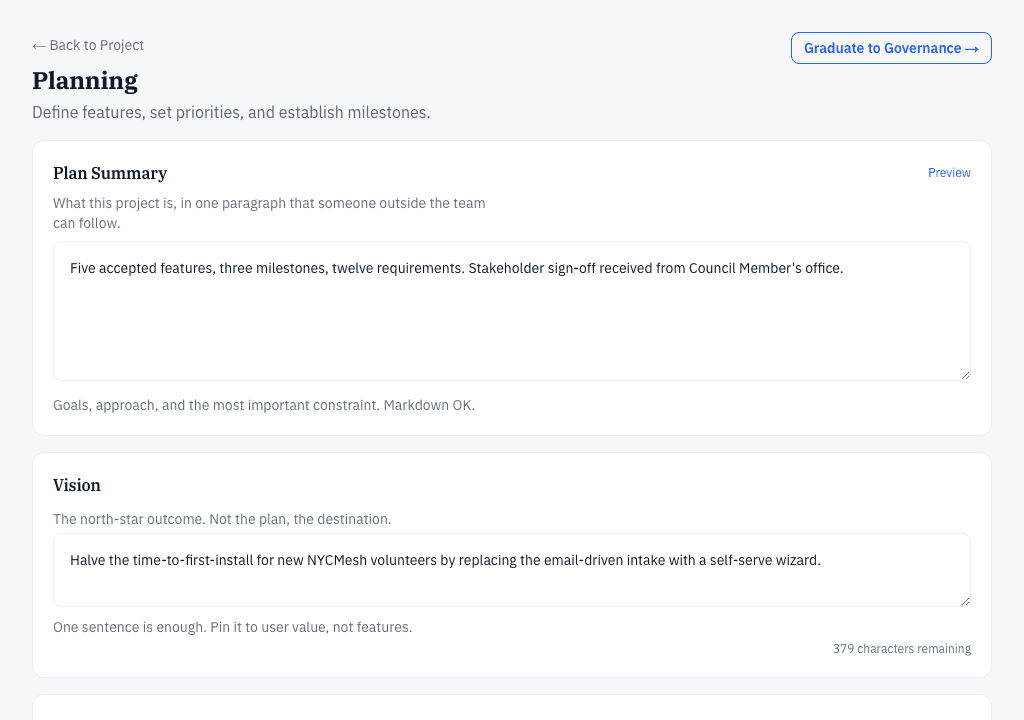
Use the planning phase to turn ideation into a concrete delivery plan: features (what the software will do), requirements (what each feature must satisfy), and milestones (when things land). Write a short vision statement so volunteers understand the goal.
- Open your project and switch to the Planning tab.
- Press Add Feature and describe one thing the software should do. Inside each feature, press Add Requirement to pin down what that feature must satisfy.
- Press Add Milestone to mark when a slice of the work should land.
- Write your Vision statement — one short paragraph on what success looks like and for whom.
- When the plan tells the whole story, press Graduate to Governance. A readiness check warns you first if the plan has no accepted features or no milestones.
What happens next: your project moves to the Governance phase, where the team is chosen by vote.
Governance and team voting
Your team is chosen the way the NYC City Council makes decisions: positions are proposed and approved by vote, candidates are nominated, and project members elect them by secret ballot — results show only the totals, never how anyone voted.
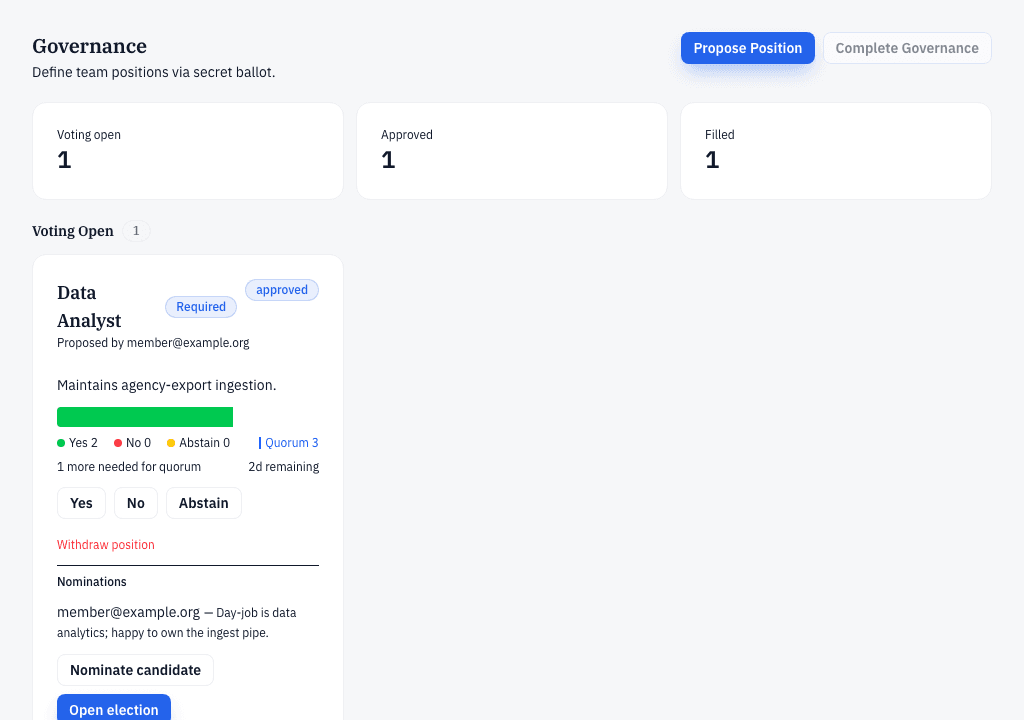
- Open your project's Governance tab and press Propose Position. Give the position a title — like Lead Developer — and tick Mark as required positionfor any role the project can't hand off without.
- Proposing opens a 72-hour approval vote: project members vote Yes, No, or Abstain on the position by secret ballot.
- On an approved position, press Nominate to put a candidate forward. When nominations are in, the project creator presses Open election — one secret-ballot session opens per nominee.
- When every required position is filled and accepted, the creator presses Complete Governance. The button stays disabled until then — governance needs at least one required position — and completing cannot be undone.
How the vote math works
- A vote passes when yes outnumbers no among the ballots cast. A tie fails.
- It only counts if at least half of the eligible voters take part — that's quorum. The eligible-voter count is locked in when the session opens.
- Abstaining counts toward quorum but not toward yes or no.
- A position vote that fails on quorum can be reopened once. A second quorum failure withdraws the position.
- In an election, the nominee with the most yes votes among passing sessions wins and is seated automatically. A tie at the top — or no passing session — triggers one revote; after that the position is withdrawn.
What happens next: completing governance assembles the handoff package from your plan and team roster and submits it for administrator review.
Tracking progress
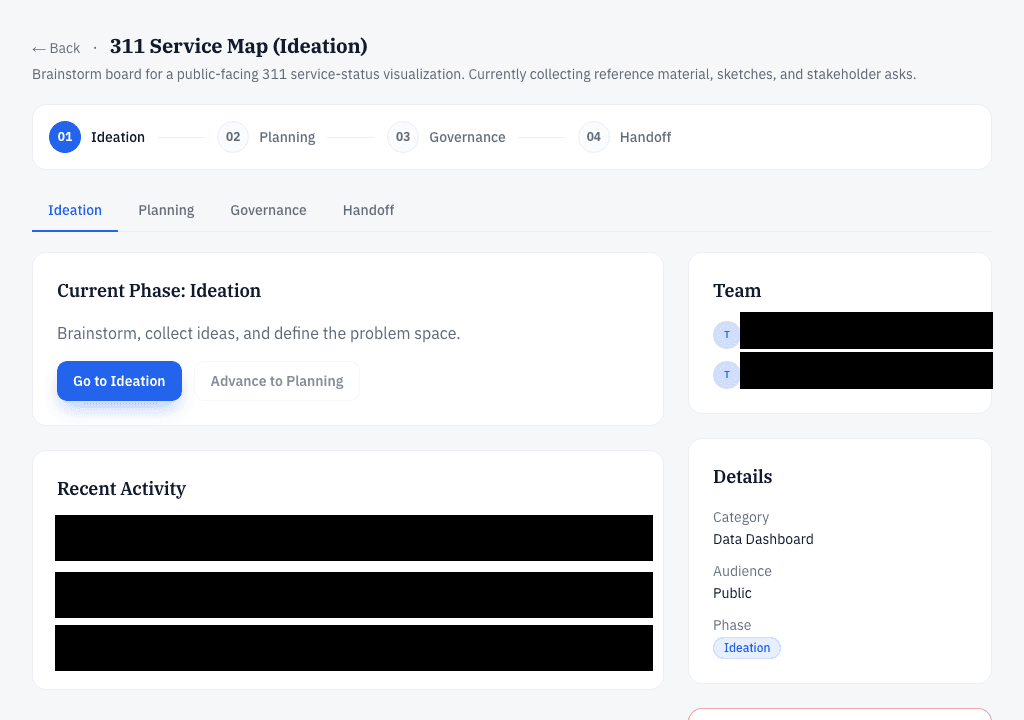
Each project moves through four phases — ideation, planning, governance, and handoff — and its overview page shows exactly where it stands.
- Open your project. The phase indicator across the top shows the four phases with the current one highlighted.
- Switch between the Ideation, Planning, Governance, and Handofftabs to see each phase's workspace.
- Check Recent Activity on the overview: the activity log records key project events — phase graduations, governance votes, role assignments, and handoff steps — with a timestamp and the member who performed each one.
Handing off to CodeNOW
The handoff package — your plan, your team roster, and your technology choices — is what CodeNOW builds from. A platform administrator reviews it, and once approved, CodeNOW automatically sets up the real development workspace.
- Complete governance (above). The handoff package is assembled from your plan and team roster and submitted for review automatically — there is no separate submit step.
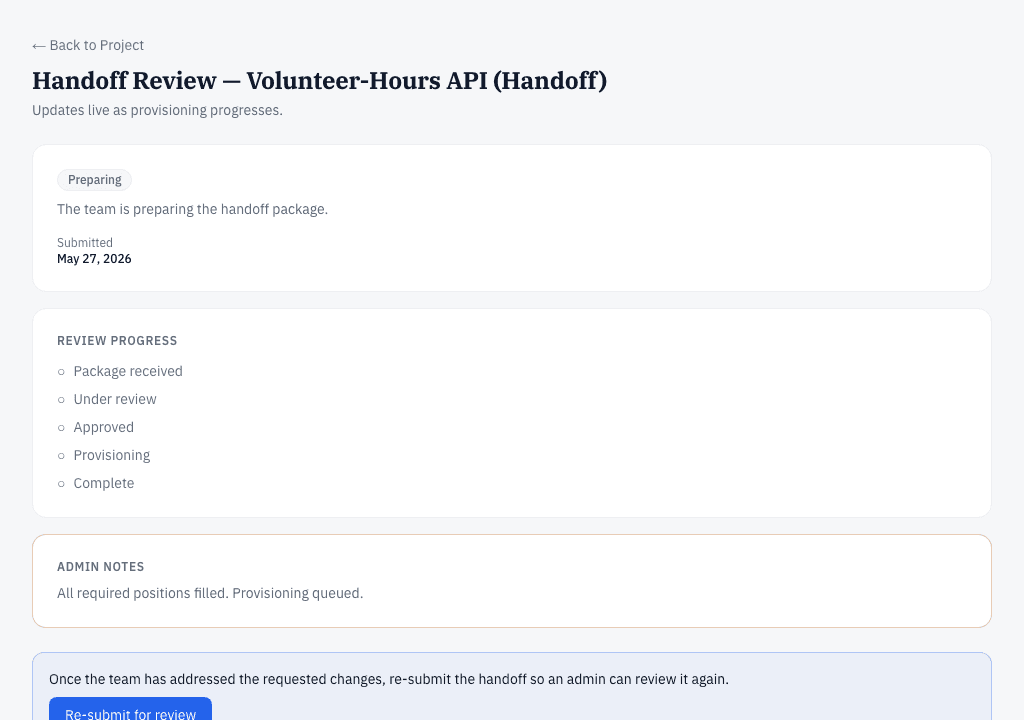
- Follow the review on your project's Handoff tab. The administrator approves the package, requests changes, or rejects it — the status card explains each outcome.
- If changes are requested, the handoff page reopens the package for editing — refine the vision, charter, tech stack, and shared services, then press Re-submit for review.
- Once approved, provisioning starts and the handoff page streams each setup step live.
What happens next: your project moves into active development on CodeNOW, and you keep following progress on the handoff page.
Managing your organization
Projects belong to an organization — a nonprofit, a city agency, a community group, a school, or just you. Organization admins manage the member list.
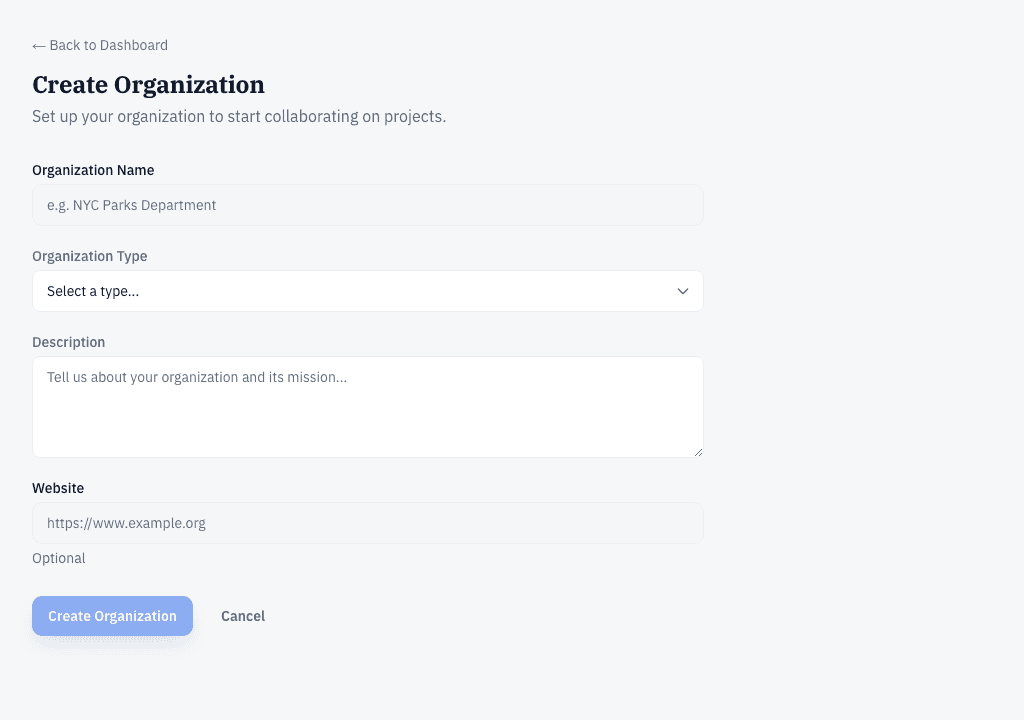
- Open My organization. To start a new one, press New organization, then fill in Organization Name, Organization Type, a short Description, and an optional Website, and press Create Organization.
- To bring someone in, open your organization and press Invite Member. Enter their email address and choose their role — member or admin.
- The invitation is recorded as a pending membership until it's accepted; active members can then work on your organization's projects.